Generating system logs in New Exalate makes troubleshooting connection issues easier and faster. Downloading logs from both sides of a connection gives the support team the details they need to help you resolve problems.
Generate System Logs for a Connection
- Go to the Connection List in the Exalate console.
- Find the connection you want to troubleshoot.
- Click the Actions menu (three dots) next to the connection.
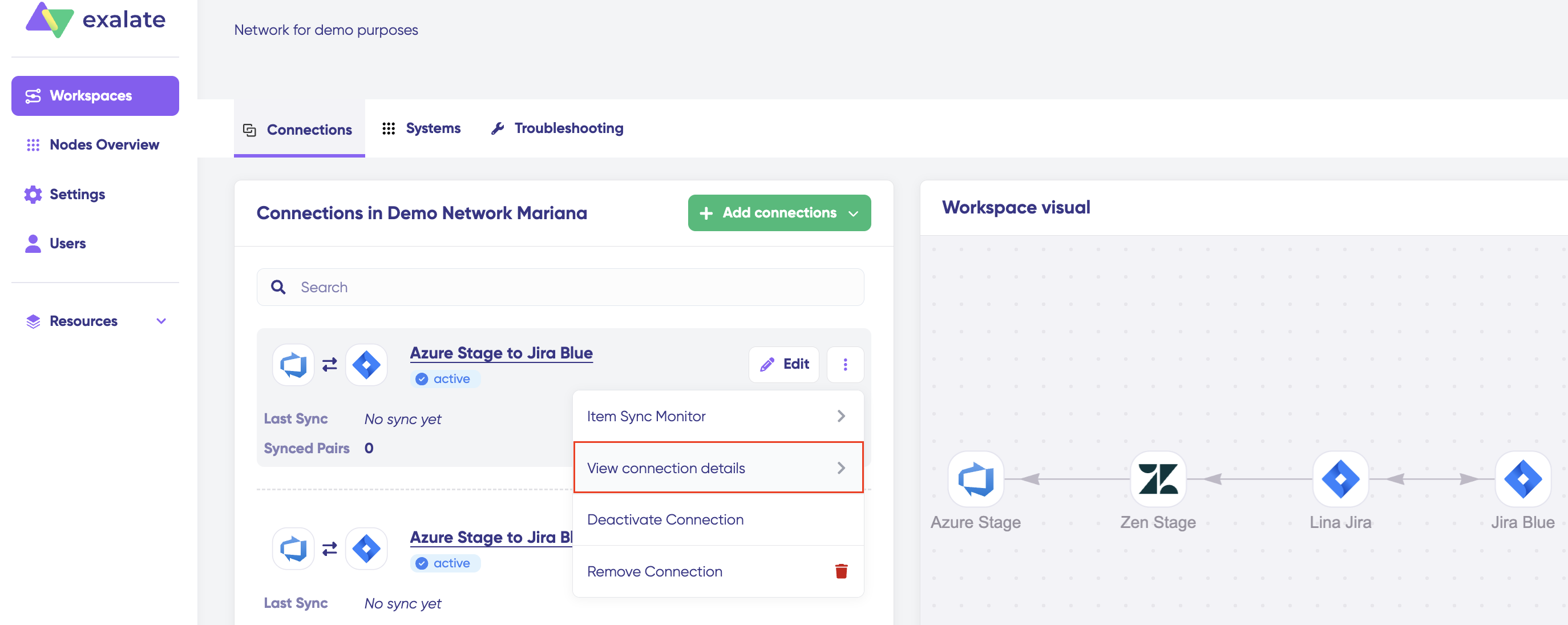
- Select View Connection Details.
- The connection details page shows both sides of the connection, each representing a different system.
- Next to each system name, click Generate Logs.
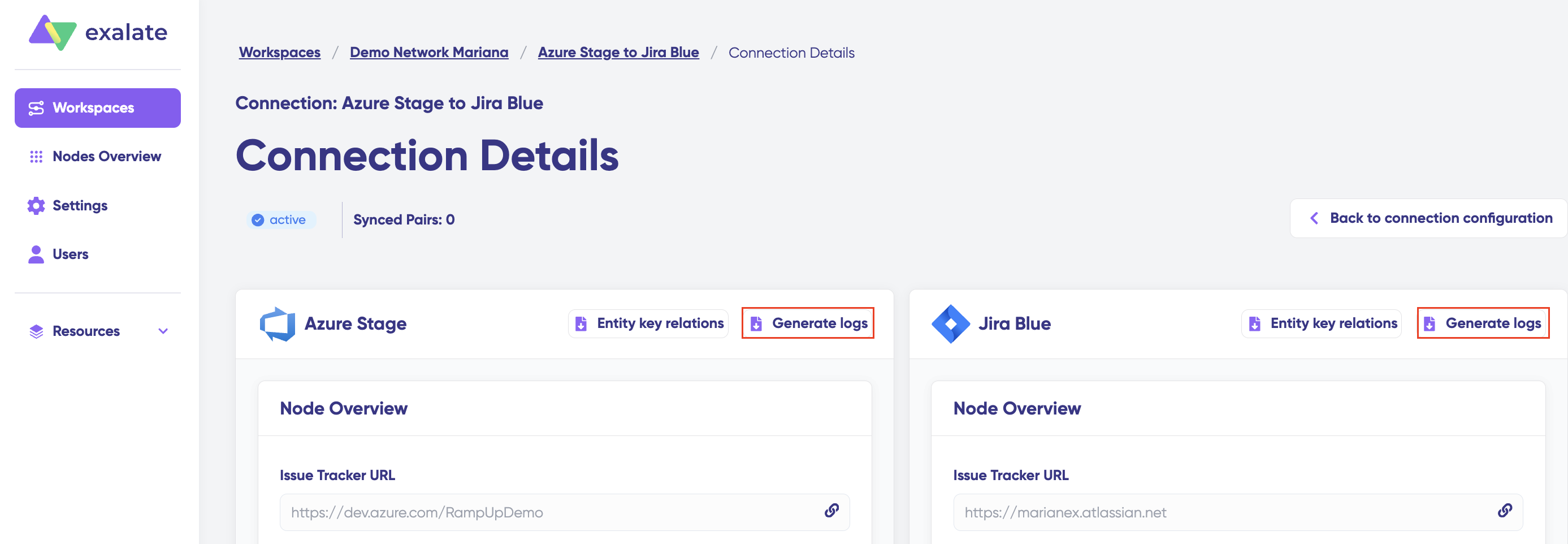
- Download the logs for each side.
Tips for Effective Troubleshooting
- Always download logs from both sides of the connection.
- Attach both log files when submitting a support request.
- Providing complete logs helps the support team diagnose and resolve issues more efficiently.
System logs contain technical details and recent activity for each side of the connection, making them essential for in-depth troubleshooting.