This article applies to Exalate Classic only. For New Exalate, refer to this documentation.
To successfully configure and manage integrations, it is important to understand the core terminology used in Exalate. This guide explains the key concepts used when setting up and operating synchronization between systems.
Core Concepts
System
A task management or service management platform connected to Exalate. Examples include Jira, Azure DevOps, ServiceNow, Salesforce, GitHub, and Zendesk. Each system participating in an integration processes synchronization independently.
Instance
An Instance is a task management system that contains information you want to synchronize. Examples of instances are Jira Cloud, Salesforce, Zendesk, and others.
You can integrate with multiple instances using different connections. You can also synchronize between local projects within the same instance.
Note: Local synchronization is not supported in all task management systems.
Whenever you set up a connection between two different task management systems, one of them is a local instance, and the other is a remote instance.
For example, if you set up an integration between Jira Cloud and Zendesk, you can initiate a connection from either side. If you choose to set up a connection on the Jira Cloud side, Jira Cloud becomes your local (source) instance and Zendesk becomes the remote (destination) instance.
Item
Any record you want to synchronize between systems. Depending on the platform, an item represents:
- Issues in Jira and GitHub
- Work items in Azure DevOps
- Incidents, problems, and change requests in ServiceNow
- Cases and opportunities in Salesforce
- Tickets in Zendesk, Freshdesk, and Freshservice
- Tasks in Asana
- Requests in Xurrent
Entity URN
Entity URN is a unique identification number that helps identify a particular entity on the different task management systems. This URN is used for syncing and unsyncing entities between different systems.
Connection
A Connection defines the synchronization relationship between two systems. It determines how items are synchronized and contains the configuration responsible for handling sync logic between both sides.
Multiple connections can exist between the same systems — for example, to synchronize different projects or workflows independently.
Connection Status
Pending: The connection is waiting for acceptance from the other side
Active: A connection has been established and synchronization messages are being sent. You can now synchronize items.
Deactivated: Synchronization is paused, but changes are queued for a later update. Once you reactivate the connection, all queued changes are applied.

Connector
A Connector is the component that allows Exalate to communicate with a specific platform. It exposes the platform's APIs and data structures so that they can be used during synchronization. Each supported platform has its own connector.
Replica
A copy of the information being transferred to the destination side. Exalate uses replicas to extract specific data and send it over. You can use the replica in the Outgoing Script to specify which data should be sent. On the destination side, the replica represents the remote item and contains only the fields provided through the data filter on the source side.
You can view the replica details in the sync monitor.
The replica looks something like this:
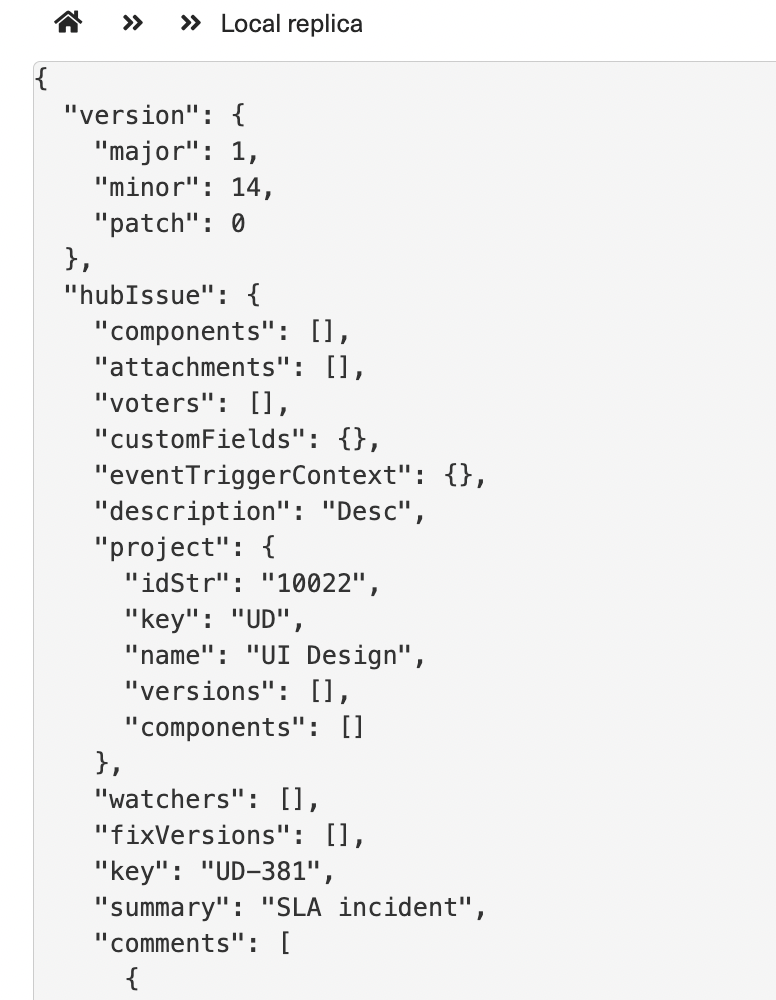 In this way, you can see what information is being passed over from the local instance. The remote replica has a similar structure.
Note: The hubIssue represents the information that is passed and how you can access it. The replica is more than the hubIssue section — it is the entire payload transferred between platforms.
Twin
A pair of entities related to each other through a synchronization relationship. Any modification to one entity is synchronized toward the other using the specifications of that relationship.
Synchronization Concepts
These terms describe how synchronization logic works.
Sync Rules
Sync Rules define how data is exchanged between systems.
They control:
- What data is shared
- How fields are mapped
- How values are transformed
Sync Rules contain outgoing and incoming logic.
Outgoing Script
The Outgoing Script runs on the source system when an item changes. It selects which fields are written to the replica and sent to the destination system.
Example:
replica.priority = issue.priority
Incoming Script
The Incoming Script runs on the destination system when a replica is received. It reads values from the replica and maps them to fields in the local system.
Example:
issue.priority = nodeHelper.getPriority(replica.priority?.name)
Trigger
A Trigger defines the conditions under which items are automatically synchronized. Triggers typically use queries or filters to detect items that should be brought under synchronization.
Sync Queue
The Sync Queue contains synchronization transactions waiting to be processed. When an item changes, Exalate creates a synchronization event placed in the queue until it is processed.
Sync Status
The Sync Status indicates the current state of an item's synchronization. Common statuses include:
- Syncing
- Error
- Unlinked
Synchronization Operations
These actions allow administrators to control synchronization.
Sync
Sync is the operation that brings an item under synchronization.When syncing begins, a corresponding item is usually created on the destination system.
Bulk Connect
Bulk Connect allows you to connect and sync entities from 2 different platforms in bulk.
Unexalate
The Unexalate operation is used to stop the entity synchronization. It is available as an option in the Sync panel on certain platforms and on the Entity Sync status tab in the Exalate Admin console.
To learn how to unexalate items in bulk in the previous experience, see Bulk Unexalate.
Bulk Exalate
Bulk Exalate allows you to sync existing entities between two platforms that satisfy conditions you have set in Triggers in bulk.
Clean-up
This operation stops the entity synchronization.
To learn more about the clean-up operation, see Clean-Up Tools.
Interface & Setup
These terms relate to the platform-level interface and connection setup in Exalate Classic.
Invitation Code
To sync information between two task management systems, you need to set up a connection. When doing this, Exalate generates an invitation code. This works as a shared secret that helps authenticate both source and destination instances. Invitation codes store encrypted connection information, such as:
- Shared secret
- Connection type
- Connection name
- Connection initiator information
- Exalate app version
- Task management system and version
- Task management system URL
- Exalate Node URL
- Task management system UID - Unique instance identifier
An invitation code is used to set up a connection with the destination instance if an initiator does not have access to both sides of the connection. The code only applies to the instance you are inviting to synchronize.
Note: An invitation code is required only in Script mode configurations.
Node
The Exalate installation on a specific system, acting as the sync agent for that platform. Each node handles outgoing and incoming transactions for all connections configured on that system.
Exalate Admin Panel
The Exalate Admin Panel is the administrative interface embedded within the connected platform. For example, inside Jira or ServiceNow. Used to manage connections, configure sync rules, and troubleshoot errors from within the platform itself.
Entity Sync Status Tab
The Entity Sync Status Tab is a tab within the Exalate Admin Console for reviewing the sync state of individual items. Use this tab to identify errors and perform operations such as manual sync or unlink on specific records.
Sync Panel
The Sync Panel is an interface displayed directly on individual items within the connected platform — for example, on a Jira issue. The Sync Panel shows the item's current sync status and provides quick access to manual sync and unlink operations without leaving the item view.