This article applies to Exalate Classic only. For New Exalate, refer to this documentation.
Connections in Basic mode have a set of Sync Rules, generated by Exalate. You can sync a basic set of issue fields: summary, description, comments, attachments, and issue types.
Note that issue types are mirrored: tasks are synced as tasks, improvements as improvements, and so on. For example, when you sync epic Exalate creates either an issue with the default issue type, if the default issue type is set in the project configuration, or Task if not set. This also applies to any other issue type that is not found on the destination side.
All comments are synced as public comments.
Note: You cannot modify Sync Rules in Basic Mode.
If you want to edit/delete Sync Rules, you can upgrade the connection to Visual Mode or Script Mode.
Set up a Local Connection in Basic Mode from Zendesk
Note: It doesn't matter which side you start initiating the Connection from. The Exalate UI remains the same.
1. Navigate to the Connections tab in the Exalate console.
To navigate to the Connections tab:
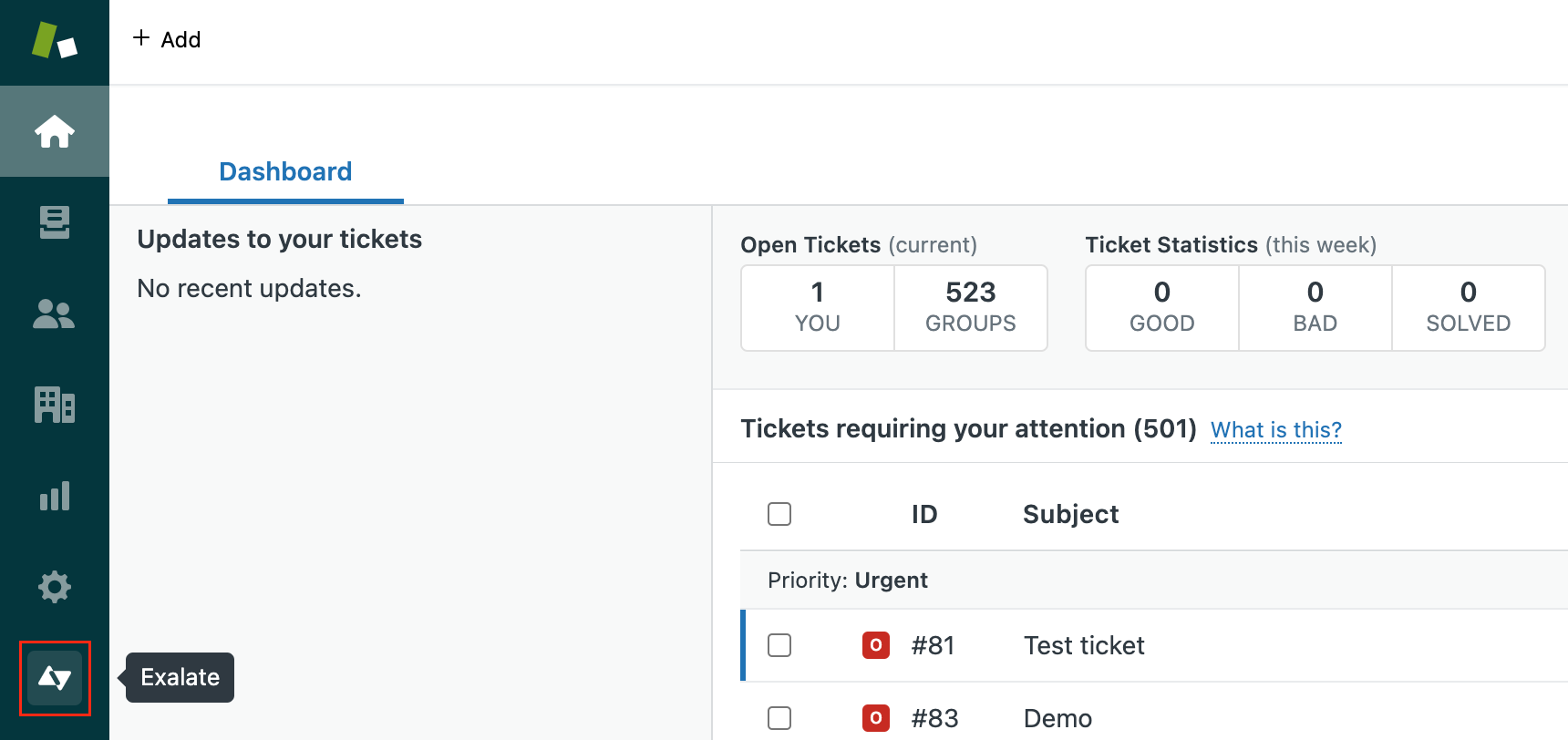
1. Click Exalate in the list of apps.
2. Click Connections.
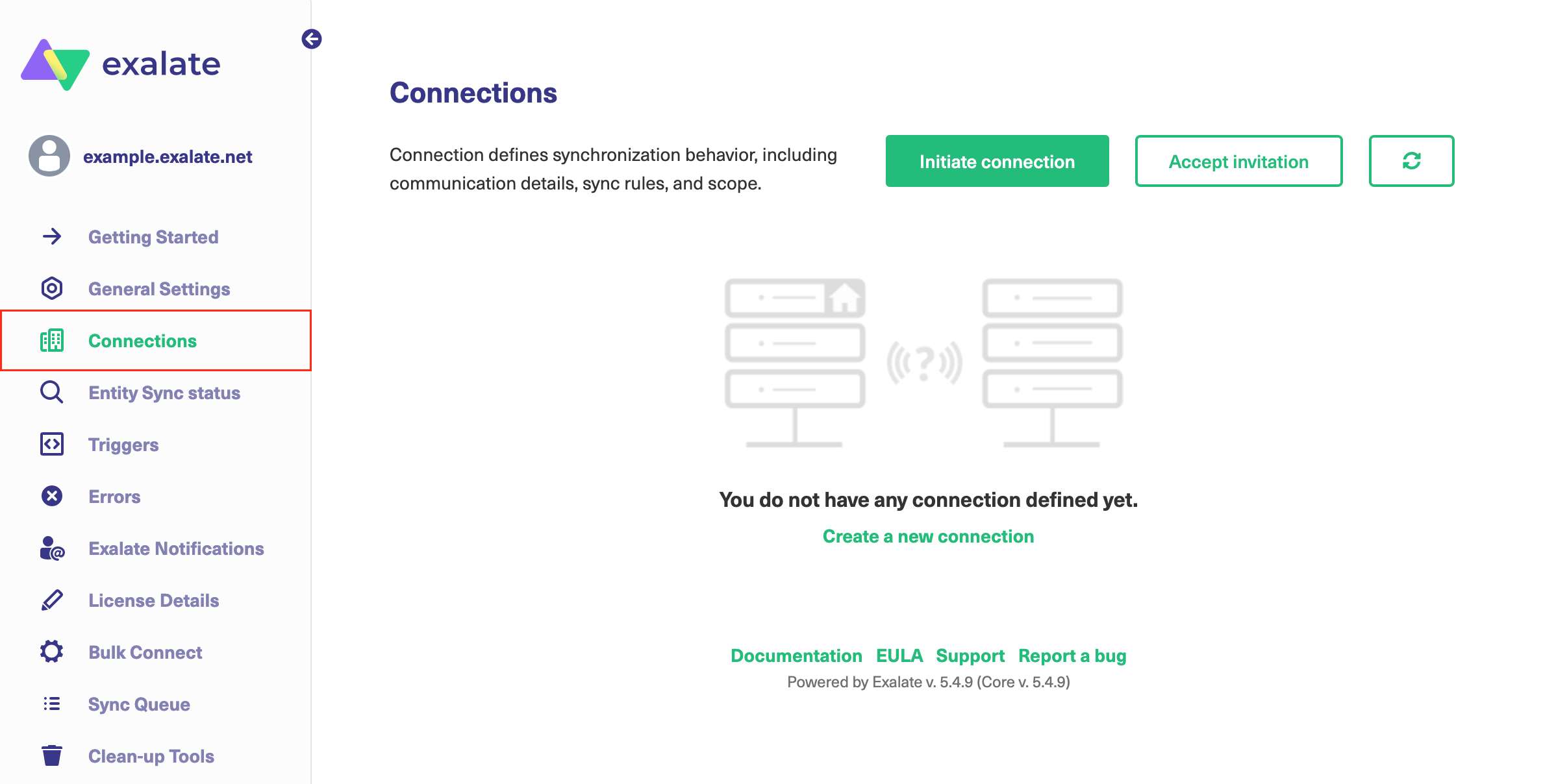
2. Click Initiate connection.

3. Enter the Destination Instance URL.
The Destination Instance URL is the link to the instance you want to set up a connection with. You can directly enter the link of that instance or the Exalate URL from the General Settings tab in the Exalate admin panel.

Exalate suggests available Configuration Modes based on the destination instance.
4. Select Basic.
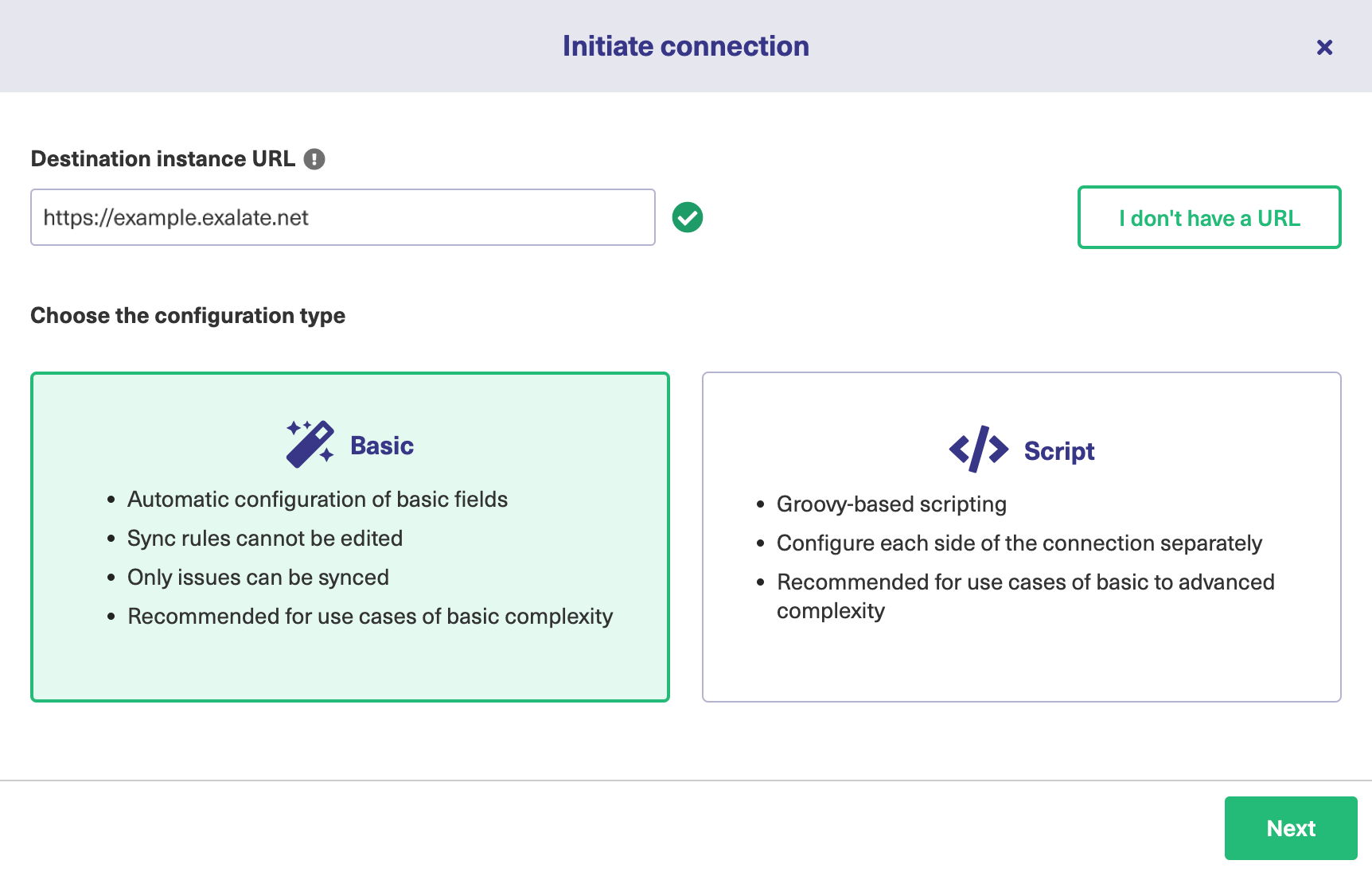
5. Click Next.
7. Click Initiate.
The Connection has been set up.