Aida is Exalate's AI-powered integration assistant embedded into the Exalate script editor to help you generate and modify synchronization scripts through natural language prompts. Instead of writing Groovy code manually, you can describe what you want to achieve, and Aida will draft the code for you.
Accessing Aida
- Navigate to your connection
- Click +New version (or open the latest draft version)
- Click Edit Script to enter the script editor


You'll see Aida chat interfaces at the bottom of both the Outgoing script and Incoming script sections. Each Aida chat works independently, allowing you to configure both sides of your connection simultaneously.

How Aida Works
Aida helps you in two ways:
- For Outgoing scripts: Describe what data should leave your system. For example, "Exclude attachments" or "Only sync high-priority issues."
- For Incoming scripts: Describe how incoming data should be applied to your system. For example, "Map statuses" or "Set a default assignee if the user can't be found."
Using Aida
Submitting a Prompt
- In the Aida input field, type your request in plain language
- Click the send button (or press Enter)
- Aida will begin drafting your script
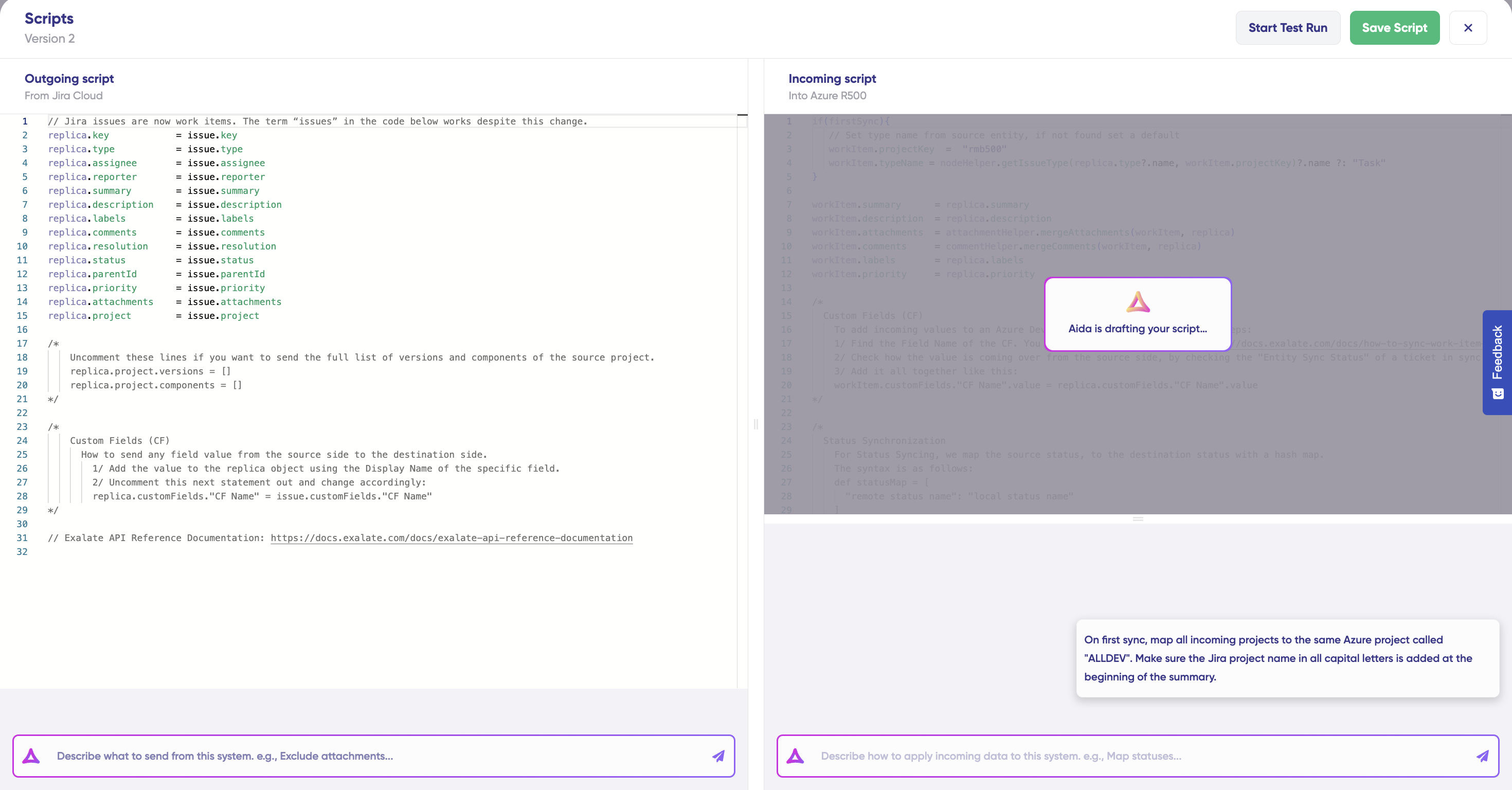
Example prompts:
- "Exclude attachments from sync."
- "Map priority field to remote system."
- "On first sync, map all incoming projects to the same Azure project called 'ALLDEV'"
- "Set a Reporter/Assignee from the source side, if the user can't be found, set a default use.r"
Reviewing Aida's Changes
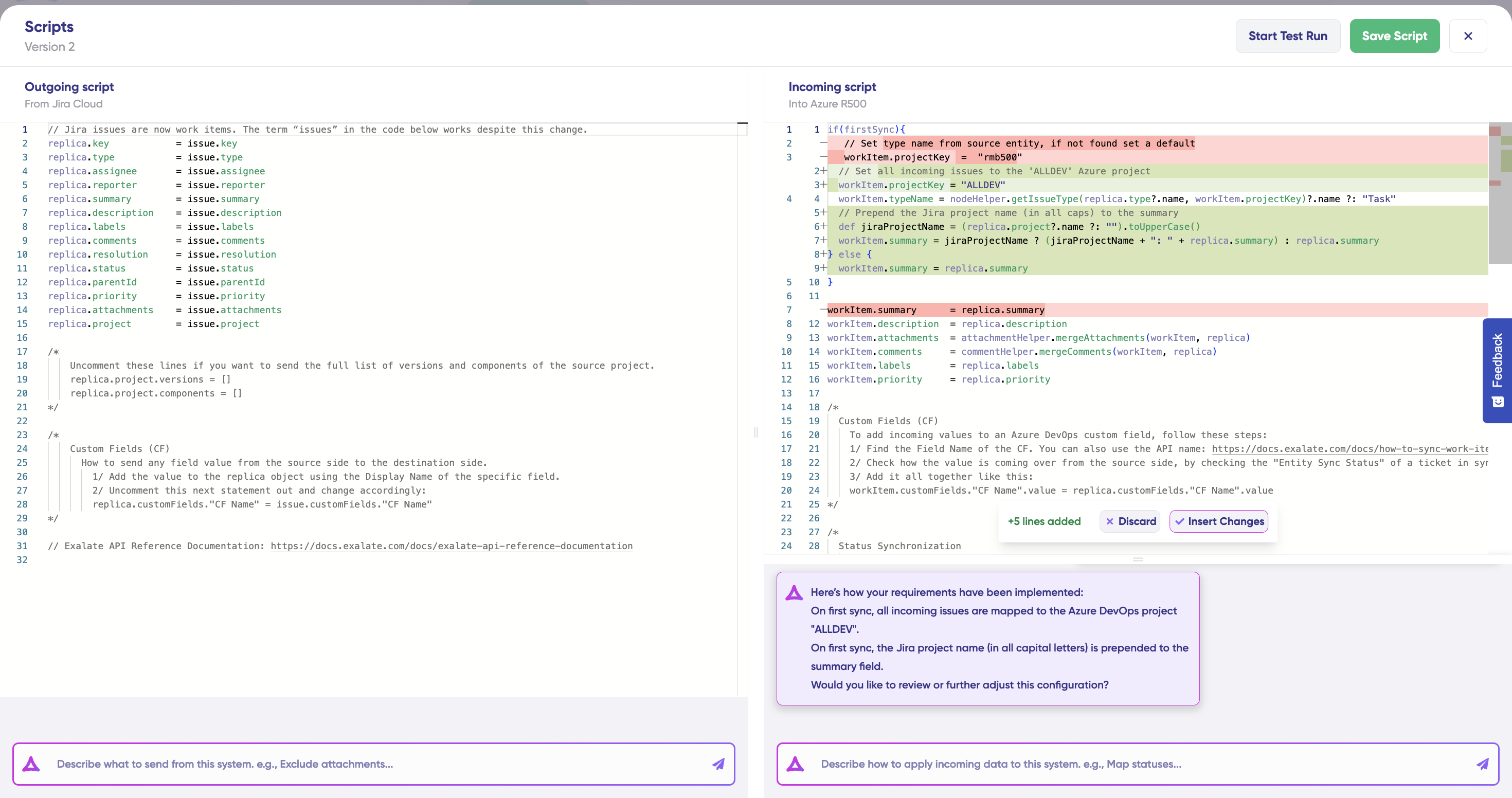
Once Aida finishes, you'll see:
- Green highlighting: New lines that will be added
- Red highlighting: Lines that will be removed
- A floating panel with Insert and Discard buttons
- Aida's explanation of the changes in the chat
The script editor becomes read-only during review, so you must choose to either insert or discard the changes before making manual edits.
Working with Scripts on Both Sides (Incoming and Outgoing)
The Outgoing and Incoming Aida chats work independently, so you can:
- Submit a prompt in the Outgoing script while Aida is generating code for the Incoming script
- Maintain separate conversation contexts for each script direction
Adjusting Your Workspace
You can resize the script panels and Aida chat windows to focus on what matters most:
- Drag the handle at the top of the Aida chat to increase or decrease its height
- Drag the divider between Outgoing and Incoming scripts to adjust their widths
Important Notes
- Aida is a helpful assistant, but you should always review the generated code before applying it
- Test your configuration using Start Test Run before publishing changes to production
- Aida works best when you provide clear, detailed descriptions of your sync requirements
- You can always manually edit the scripts after applying Aida's suggestions